Veeam 主机 agent 纳管问题小记
前言
今天用 Veeam 纳管了几十台主机,基本都是 Linux 和 Windows 两种类型,期间遇到了一些问题,整理总结一下,以备后面再遇到可以方便查看。
问题一
问题描述
主机系统同样都是 Centos 8.3,却有 2 台显示不支持的系统 Unsupported OS,无法纳管:

问题分析
检查操作系统版本:
1 | [root@AP ~]# cat /etc/redhat-release |
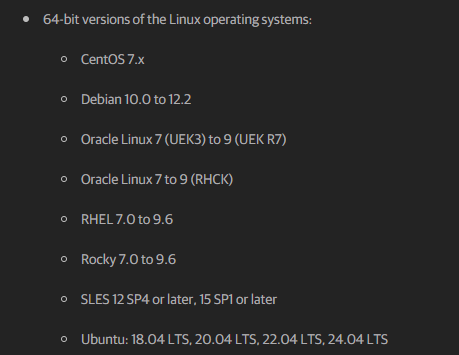
检查官方文档支持清单,显示不支持 Centos 8 系列:
检查 Rescan 日志(C:\ProgramData\Veeam\Backup\Rescan):
1 | [18.11.2025 09:12:00.269] <18> Info (3) [veeamdeployer] Command result: '<OutputArguments><systemInfo value="<LinuxEpSystemInfo SystemType="1" ComputerName="AP" OsPlatform="1" KernelVersion="4.18.0.0" OsVersionStr="CentOS Linux 8" BiosUuid="{4c893f4b-e635-7b4e-95fe-df41418df887}" SystemIsVirtual="true" IsSupported="false" KernelFlavour="240.el8.x86_64" PublicCloudType="0"><DistrInfo name="CentOS Linux" osType="centos" version="8.0.0.0" prettyName="CentOS Linux 8" /></LinuxEpSystemInfo>" /></OutputArguments>' |
从以上日志中可以提取出关键字 IsSupported="false",agentInstallationStatus [UnsupportedOs],很明显了,就是操作系统不支持。
解决方案
解决方案比较简单,可以下载红帽 RHEL 8 的 Veeam rpm 包进行手动安装:
https://repository.veeam.com/backup/linux/agent/rpm/el/8/x86_64/
Linux x64 的需要下载以下几个 rpm 包:
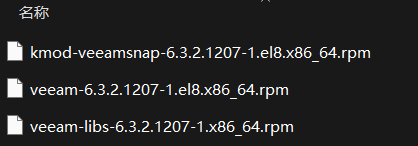
上传到主机上按照以下顺序进行安装:
1 | rpm -ivh kmod-veeamsnap-6.3.2.1207-1.el8.x86_64.rpm |
安装完成后,再回到 VBR 执行 Rescan 即可。
至于为什么其他几个 Centos8 系统可以纳管成功,我猜测是之前有人手动安装过 agent 吧,看了下 veeam agent 目录时间:
1 | [root@AP veeam]# ll |
看起来确实如此,问题解决。
问题二
问题描述
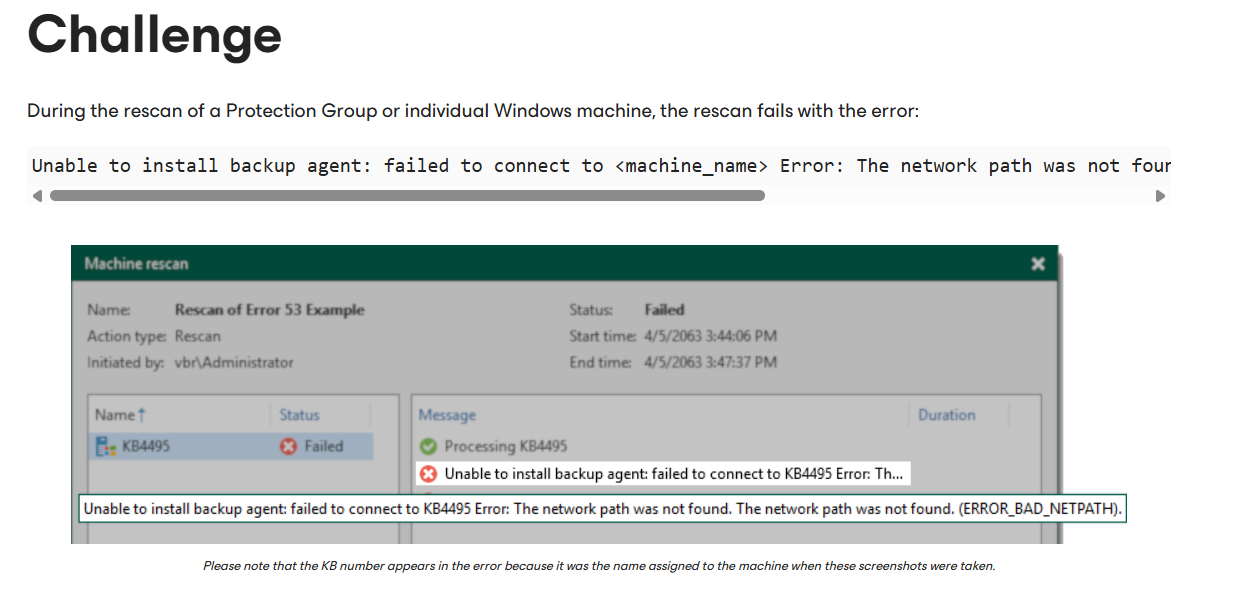
第二个问题就更加没见过了,两台 Windows 主机无法纳管,报错如下:
1 | 2025/11/18 9:47:50 Warning Failed to connect to 192.168.120.23 Details: The network path was not found. The network path was not found. (ERROR_BAD_NETPATH). |
问题分析
一开始在添加过程中一直提示 RPC 错误,就以为是网络端口限制或者密码不对,折腾了很久,后来排除了以上两种原因。
在 Google 搜了一下解决方案,找到一个类似的文档:
看问题描述,和我遇到的情况一致:
检查 Rescan 日志(C:\ProgramData\Veeam\Backup\Rescan\Rescan_of_<protection_group_name>\Task.<machine_name>.log):
1 | [18.11.2025 09:47:46.692] <29> Info (3) [RPC] Making sure that the deployment service installed on host [192.168.120.23]. Failed. |
根据文档提示,排除了防火墙、DNS、服务器关机、网络端口限制、服务运行以及网卡开启文件和打印机共享功能这些问题,最后就只剩下 ADMIN$ Share Is Active 这个没有检查。
在被纳管的 Windows 主机上使用 PowerShell 执行以下命令:
1 | Get-WmiObject -Class Win32_Share | Where-Object { $_.Name -eq 'admin$' } |
如果执行后没有返回内容,则说明有问题,反之是正常的:

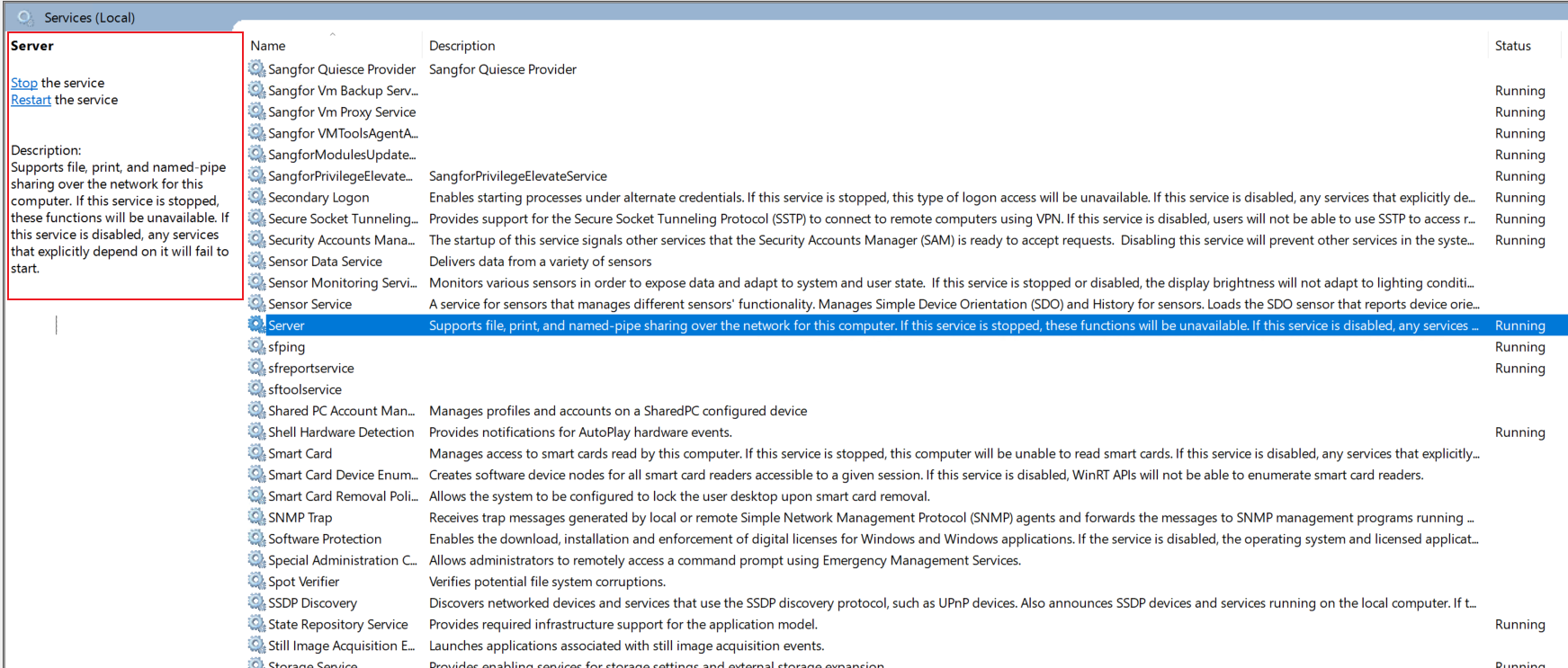
我这两台都没有返回任何信息,符合文档描述,解决方案也很简单,重启服务器服务就行:

打开服务管理,重启 Server 服务:
重启后,再次检查:
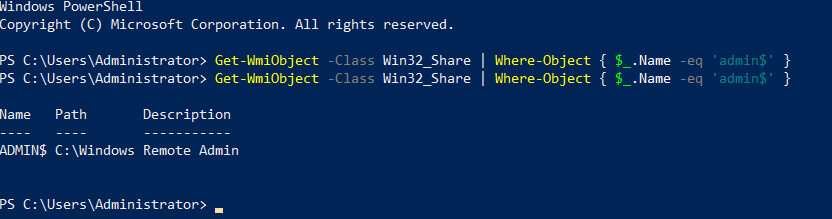
可以正常返回结果,在 VBR 上执行 Rescan:

纳管成功,问题解决。
写在最后
虽然问题的处理方式都比较简单,但是没有遇到过处理起来就容易一脸懵,这次弄清楚之后,以后再遇到就可以从从容容、游刃有余了。